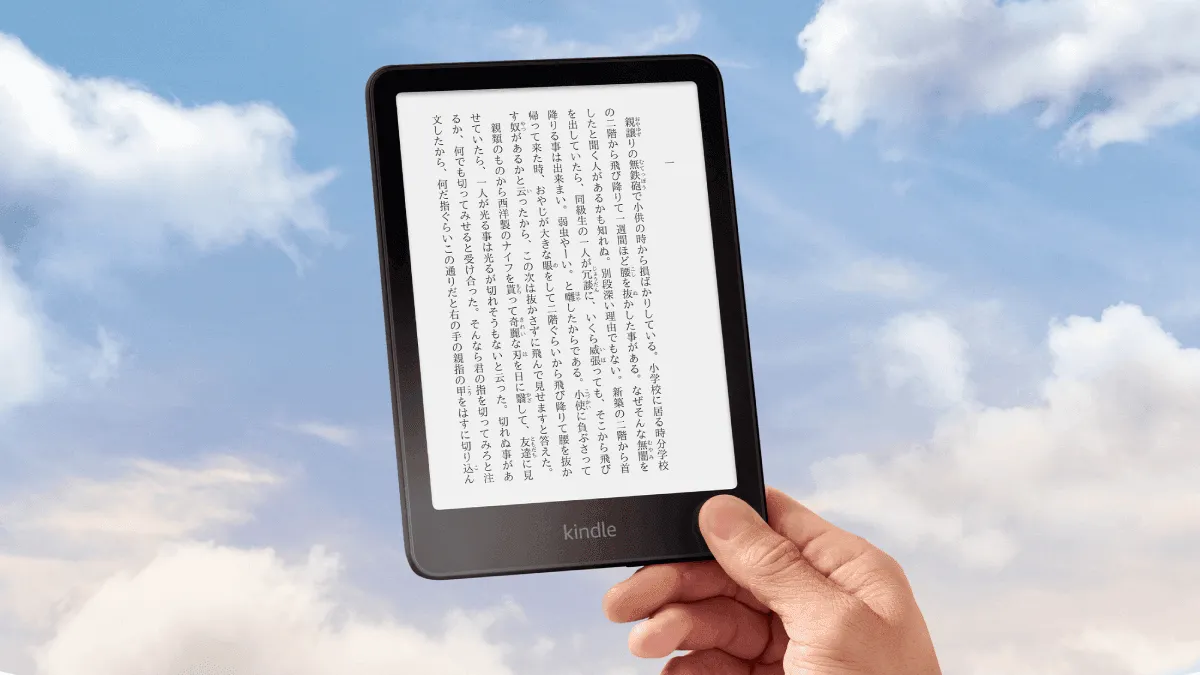
I started reading Japanese on my Kindle two years ago with N4-level ability. (For a broader look at language learning with e-readers, see our guide to learning any language with an e-reader.) Today I can get through a light novel without reaching for a dictionary more than once a page. The Kindle didn’t teach me Japanese — but it removed every friction point that used to slow me down.
Step 1: Install the right dictionaries
The killer feature is instant word lookup. Tap and hold any word, and the definition pops up without leaving the page. This is the single biggest advantage Kindle has over paper books for language learning.
For Japanese, install (see also our full multilingual dictionaries guide):
- JMdict (Japanese-English) — The standard free dictionary. Download the
.mobifile from github.com/jrf/jmdict-kindle and copy it to a Kindle’sdocuments/dictionariesfolder. - Progressive J-E Dictionary — Better for beginners. Shorter, simpler definitions. Same installation process.
For Korean, French, German, or any language with a strong digital dictionary presence: search “[language] Kindle dictionary GitHub” and you’ll almost always find a free community-maintained option.
Step 2: Set your default dictionary
On a Kindle: Settings → Language & Dictionaries → Dictionaries. Set your target language to the Japanese dictionary. Now every word you tap shows the Japanese→English definition. The built-in English dictionary stays available as a fallback — select it from the popup when you need it.
Step 3: Load graded readers
Jumping into native content too early is the #1 mistake. Start with graded readers — books written specifically for learners at your level.
Free sources:
- Tadoku.org — Free Japanese graded readers from level 0 (first words) to level 5 (near-native)
- Satori Reader — Paid, but excellent for intermediate learners. Stories with clickable translations and grammar notes. Their articles are formatted for Kindle via web-to-EPUB conversion.
- NHK Easy News — Not a book, but you can save articles as EPUB and send to Kindle
For other languages: search “[language] graded readers free online”. Most major languages have free options through university projects or government cultural programs.
Step 4: Use Vocabulary Builder like a spaced-repetition system
Kindle’s Vocabulary Builder remembers every word you look up. Go to Menu → Vocabulary Builder to see your list.
The built-in review is basic flashcard-style, which works. For a better experience, export your vocabulary list and import it into Anki. The tool KindleVocabToAnki automates this — it extracts a Kindle vocab database and creates Anki cards with the original sentence context. See our full guide to Kindle Vocabulary Builder and Anki integration for the complete setup.
What works better than I expected
After two years, here’s what surprised me:
- Reading on Kindle is faster than paper for language learning. The instant lookup saves 10-15 seconds per unknown word. Over a 300-page book with 5 lookups per page, that’s hours saved.
- The “just keep reading” effect is real. The lookup friction is so low you stop avoiding unknown words. You tap, read the definition, move on. No reaching for a phone. No losing your place.
- You don’t need to understand everything. My rule: if I understand 70% of a page, I keep going and only look up words that appear twice. Below 70%, the book is too difficult — switch to easier material.
Related
- Kindle Vocabulary Builder as a spaced repetition system — Export your Kindle vocab to Anki and build a daily review habit.
- Multilingual dictionaries: the complete guide — How to install and switch between dictionaries on any e-reader.
- Learn any language with an e-reader — The universal setup that works for Japanese, Korean, French, and beyond.