
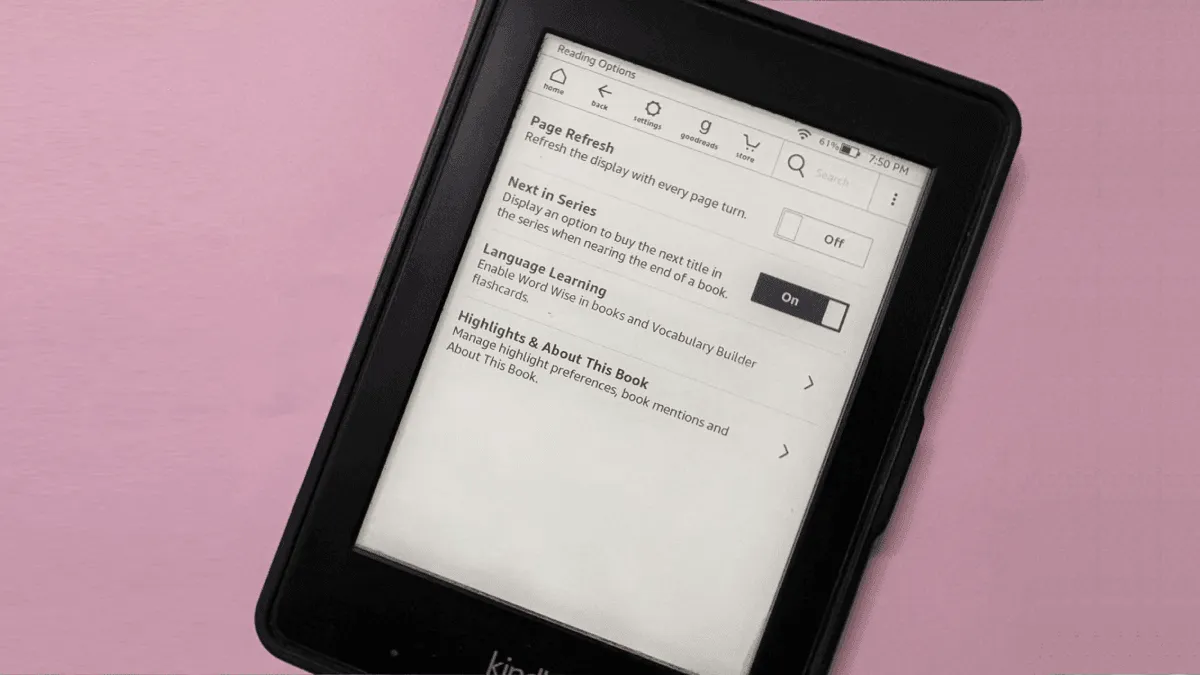
If you have used a Boox e-reader for any length of time, you have seen it: faint traces of the previous page lingering on the screen after you turned to the next one. Characters from an earlier paragraph, the outline of a menu you opened five minutes ago, the ghost of a PDF you read yesterday. E Ink ghosting is an inherent characteristic of the technology, but Boox devices are especially prone to it because of how they are tuned.
This is not a defect. It is a tradeoff. Boox devices run full Android, which means they need to handle scrolling, animation, and app interfaces — things that traditional e-readers never deal with. To make Android usable on E Ink, Boox defaults to faster refresh modes that leave more ghosting behind. The good news: you have extensive control over this behavior, and a few setting changes can dramatically reduce ghosting on any Boox model.
How E Ink Ghosting Happens
E Ink screens work by moving charged pigment particles inside millions of tiny microcapsules. When the screen refreshes, an electric field pulls the correct particles to the surface. A “full refresh” resets every capsule to a known state before drawing the new image. A “partial refresh” only updates the capsules that changed, which is faster but leaves some particles in intermediate positions — these are the ghosts you see.
Kindle and Kobo use partial refreshes sparingly and perform a full refresh every 5-6 page turns by default. Boox uses partial refreshes much more aggressively to maintain responsiveness, and the default full-refresh interval can be every 20+ pages. This keeps the UI snappy but produces visible ghosting that builds up over time.
The Fix: Optimize Refresh Settings Per App
Boox’s killer feature is per-app refresh optimization. Unlike Kindle or Kobo where you get one global refresh setting, Boox lets you tune the refresh behavior for each app individually. This means you can have aggressive ghosting reduction in reading app while keeping the web browser responsive.
Open the E Ink Center (swipe up from the bottom of the screen or open the floating ball menu, then tap the E Ink icon). For each app, you will see these refresh modes:
- Normal Mode: Full refresh every 5-10 page turns. Good balance for most reading apps. Start here.
- Regal Mode: Full refresh on every single page turn. Zero ghosting, but the brief black flash on every page can be distracting. Best for image-heavy PDFs and comics.
- Speed Mode: Minimal ghosting reduction, maximum responsiveness. Use for web browsing, video, and apps with scrolling. Will show the most ghosting.
- A2 Mode: No ghosting reduction at all. Extremely fast but very grainy. Only use when you absolutely need speed, like typing or scrolling a complex webpage.
For Kindle, Kobo, and other reading apps on a Boox, set the refresh mode to Normal. For PDF readers and annotation apps, Regal mode is worth the slower page turns for the clean image quality. For the web browser and news apps, Speed mode is the practical choice.
The Full-Refresh Interval
In the E Ink Center, you can also adjust the full-refresh frequency. The setting is labeled something like “Full refresh frequency” or “Refresh after X pages.” Boox defaults vary by model, but 10-20 pages is common. Lowering this to 5 pages makes ghosting much less noticeable without noticeably impacting battery life or responsiveness.
For the reading app you use most, try setting the full-refresh interval to 1 (every page turns fully refreshes) for an hour of reading. You probably will not like the constant black flash. Then try 5 pages — most people find this the sweet spot where ghosting is barely visible and the reading experience stays smooth.
When Ghosting Ignores Settings
If you have set Normal or Regal mode with a 5-page refresh interval and still see heavy ghosting, something else is going on. Two common culprits:
Temperature: E Ink screens are more sluggish in cold environments. If you are reading outside in winter weather, ghosting will be worse than usual and no setting change will fully fix it. Bring the device indoors and let it warm up.
App compatibility: Some Android apps are not optimized for E Ink at all and force their own rendering pipeline that bypasses Boox’s refresh controls. Google Docs, certain PDF readers, and apps with complex animations are the usual suspects. If ghosting is severe in one specific app, try an alternative — for example, use the built-in NeoReader for PDFs rather than a third-party PDF app.
The Nuclear Option: A Full Screen Refresh
If ghosting is visible right now and you want it gone immediately, you do not need to change any settings. Just perform a manual full refresh. On most Boox models, you can do this by pressing the power button briefly (not long enough to bring up the shutdown menu) or by tapping the refresh icon in the navigation ball.
Some users set a gesture: double-tap the screen or swipe from a corner to trigger a manual refresh. This becomes muscle memory, and you will find yourself clearing ghosting without thinking about it.
What About Hardware?
Ghosting is not a sign of a faulty device, and replacing a Boox will not make it go away. Every Boox model from the Palma to the Note Air to the Tab Ultra uses the same underlying E Ink technology with the same ghosting characteristics. The only difference is that newer models have slightly faster refresh electronics, which actually makes partial-refresh ghosting slightly less visible, but the fundamental behavior is the same.
If ghosting genuinely bothers you to the point of distraction, the Kindle or Kobo ecosystem handles it more aggressively out of the box. But you lose Android app support in exchange. For most Boox users, the right refresh settings make the tradeoff well worth it.
Frequently asked questions
Why does Boox have more ghosting than Kindle?
Boox devices run Android and prioritize screen responsiveness over ghosting reduction by default. The faster refresh modes that make scrolling apps and web pages usable also leave more residual images. Kindle and Kobo use more aggressive full-refresh strategies that clear ghosting more thoroughly but make screen updates slower.
Does ghosting damage the E Ink screen?
No. E Ink ghosting is a temporary visual artifact, not physical damage. The pigment particles inside the microcapsules get stuck in an intermediate state rather than resetting fully. A full refresh clears them completely. The screen itself is not being harmed.
What is the best refresh mode for Boox to minimize ghosting?
For reading apps, set the refresh mode to "Normal" or "Regal" mode. Regal mode performs a full screen refresh on every page turn, which eliminates ghosting but is slower. Normal mode refreshes every few pages and is a good balance. For web browsing and apps, "Speed" mode is necessary for usability but will show more ghosting.