 Inksky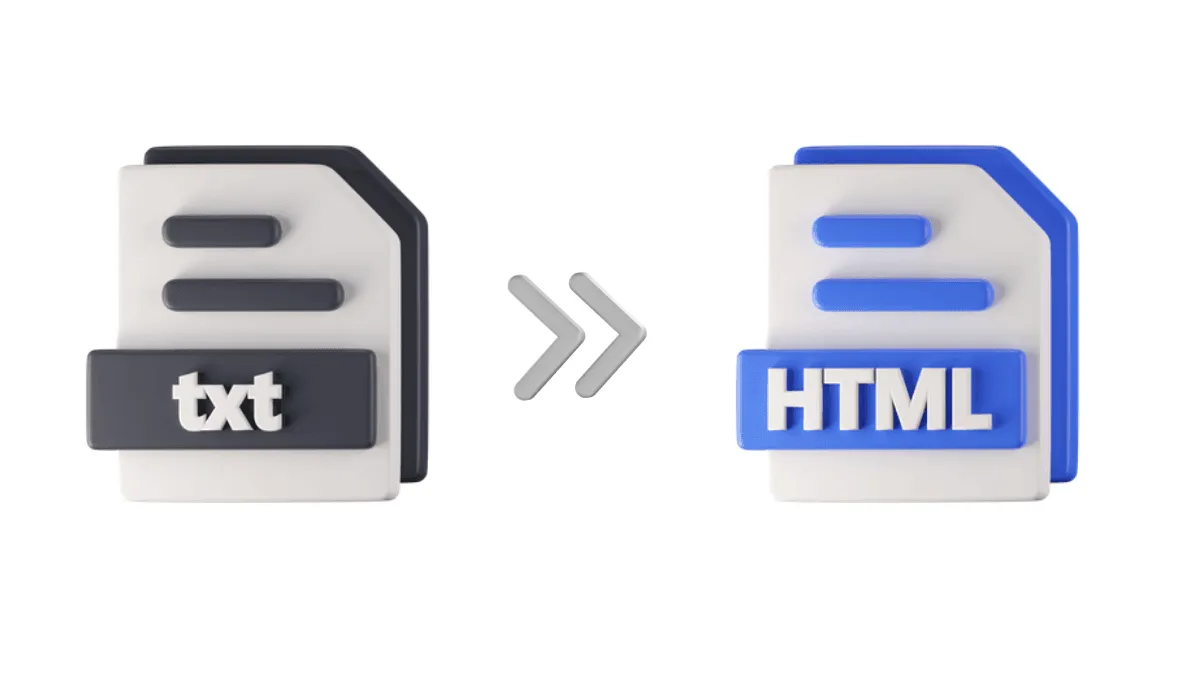
If you’re a heavy Kindle highlighter, you know the problem: the My Clippings.txt file on your Kindle is a massive, unstructured text dump. Every highlight and note from every book, mashed together in chronological order. Finding anything useful means scrolling through thousands of lines.
Clippings Fere turns that chaos into clean, organized HTML. Each book gets its own section with highlights grouped together — readable at a glance, searchable, and ready to export into any note-taking app.
What Clippings Fere does
Your Kindle’s My Clippings.txt looks like this:
==========
Atomic Habits (James Clear)
- Your highlight on page 42 | Location 632-634
Small habits don't add up. They compound.
==========
A single file for every book you’ve ever highlighted. There’s no way to filter by book, no formatting, and no export options.
Clippings Fere parses this file and creates an HTML document where:
- Each book gets its own section with the title as a heading
- Highlights are grouped together in chronological order within each book
- Formatting is clean and readable — you can actually review your notes
- The HTML output works with any note-taking app that supports imports
Getting started
Download Clippings Fere from BookFere. It’s available for Windows and macOS.
- Connect your Kindle via USB
- Copy
My Clippings.txtfrom thedocumentsfolder on your Kindle - Launch Clippings Fere and select the file
- Choose an output location — the tool generates an HTML file
- Open the HTML in your browser
The output is clean enough to print, share, or paste into Obsidian, Notion, or Roam Research. If you mark up a lot of non-fiction, this tool makes your highlights actually useful instead of buried in a text file you never open.